5 Tweaks for a Productive Terminal
The terminal is a developer's best friend. I'll introduce five ways to make it an even better companion to your workflow.
Why Tweak Your Terminal?
Installing software, running tests, compiling code, managing servers. You name it, the terminal can do it. The terminal is probably one of the most versatile tools in your toolbox.
Think about it, how often a day do you use your terminal?
Keeping this in mind, wouldn't it make a lot of sense to optimize that tool as much as you can? I'll show you five tweaks to make the most out of your terminal.
Upgrade Your Terminal Emulator
A Terminal Emulator is the application you use to interact with your shell. Your OS comes with a default terminal, and they can be pretty good, but there are more powerful "aftermarket" options around.
One such option is Kitty. Kitty is an open-source terminal emulator with some standout features:
- GPU Rendering. Offloads rendering to the GPU for a smoother experience and freeing up the CPU to do its job more quickly.
- Versatile Rendering. Kitty supports rendering of glyphs, emoji, ligatures and has great font support out of the box. Very useful for programmers.
- Tabs and multiplexing. Multitasking is very effective with Kitty, as it supports tabs and multiple windows within tabs.
- Keyboard-driven. As a power user, the keyboard is your friend. Kitty embraces this philosophy and is almost entirely driven by the keyboard, sporting sensible shortcuts.
- Extensible. Kitty supports plugins, which it calls kittens. It is also scriptable at its core.
- Configurable. Don't like a keybinding or how something works? Change it! A tool should fit your workflow, and Kitty allows you to do just that.
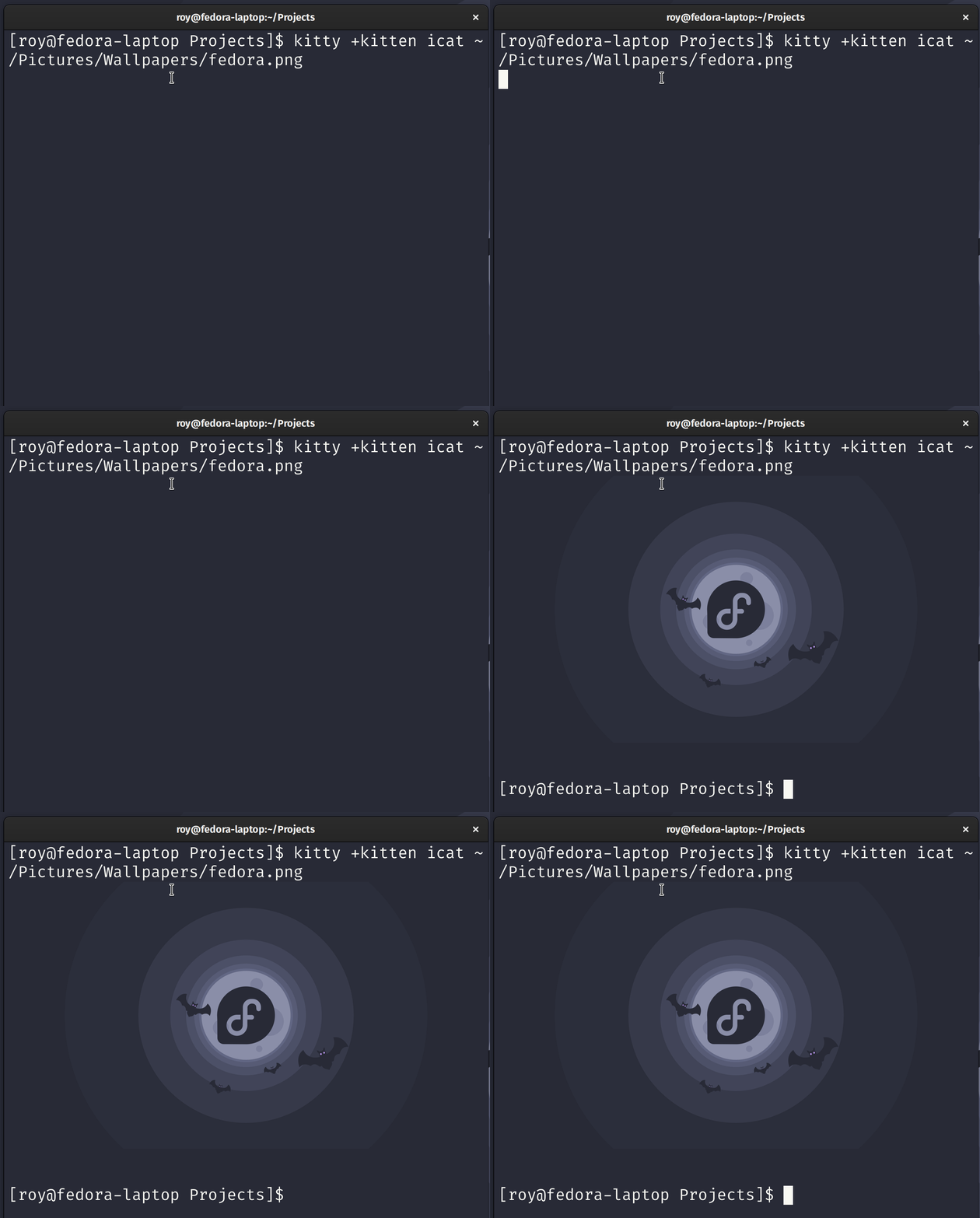
Kitty is extensible and can even render images
The responsiveness, great rendering experience, and productivity enhancements make a great difference in my daily terminal work. Another big factor in productivity in the terminal is the shell. Let's see how we can give that an upgrade.
Supercharge Your Shell
The shell is crucial to your terminal experience because it is always present. It is what you use to interact with your Operating System.
You're probably familiar with the Bash shell which is the default in many Operating Systems. But, same as with the emulator, there are more powerful options around. I recommend the shell Fish.
What makes Fish great? It offers great productivity boosters like:
- Autocompletion. Like code completion, but for terminal commands. After a while Fish becomes almost telepathic, and you hardly have to type commands at all!
- Manpage completion. Ever wondered which flags are available for a specific CLI? Fish can show you inline hints and descriptions based on the man pages for the command.
- Color support. Fish supports 24-bit colors, which is helpful in practice. For instance Fish colors anything you type in the terminal, letting you know whether a command is valid (blue) or not (red) before you've even run it!
- Out-of-the-box experience. Other shells can get some of these features working, but it requires a lot of tinkering. Fish is great out of the box and takes up minimal time to set up.
- Plugins. If you do like to tweak your shell, you can do so with Fish. The projects Fisher or Oh My Fish offer great plugin support. For instance, I run a plugin that gives me a lot of sane aliases for using the git CLI.
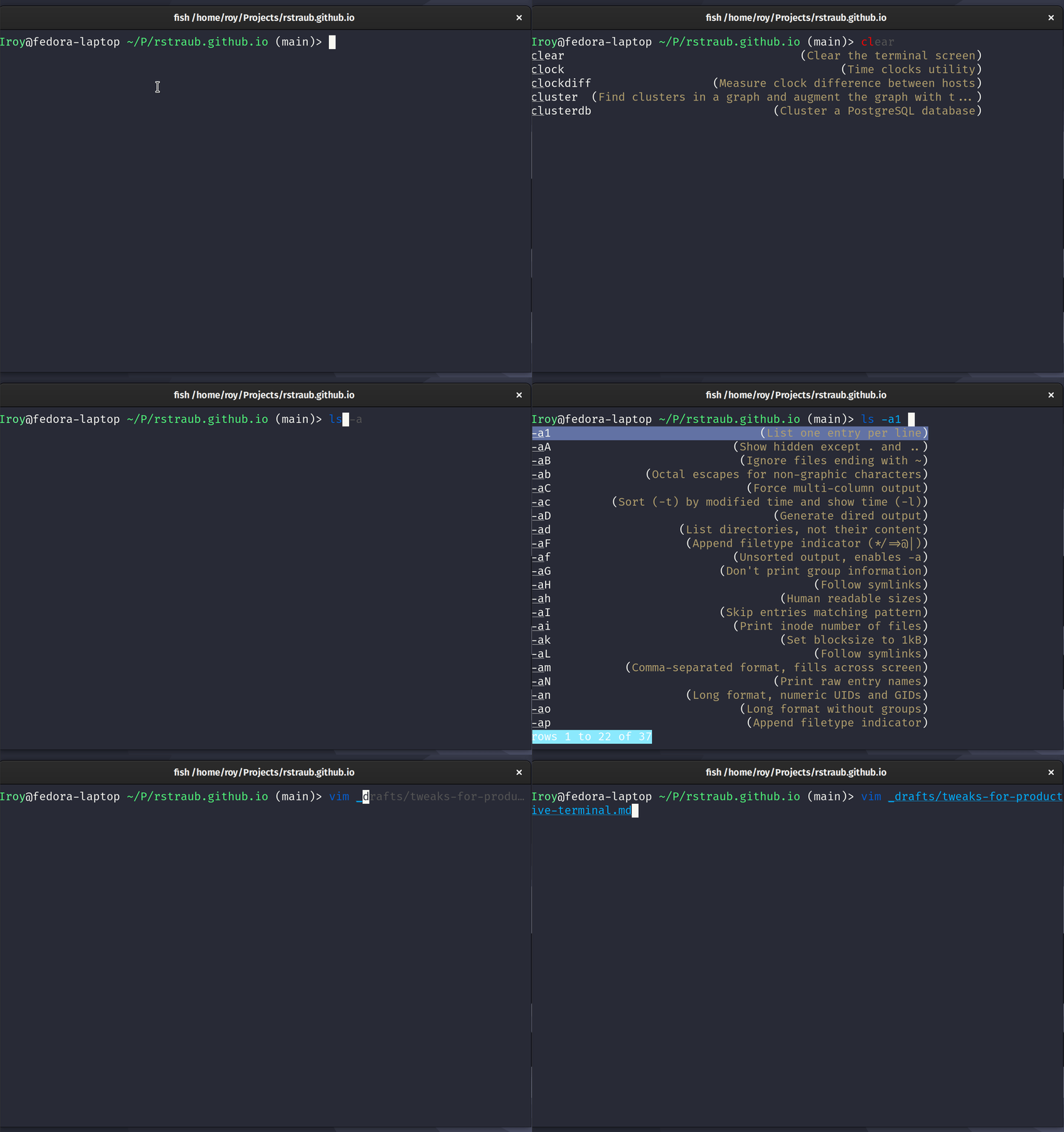
Fish is a very capable shell
Fish helps you do what you need to do in the terminal in a much more efficient manner, but we can do better! Besides the shell, we can also make the prompt more useful to us.
Power up Your Prompt
What is a prompt?
It's (usually) the $ sign that tells the user whether the CLI is ready to accept a new command.
Doesn't sound too spectacular, now does it? We can make it do much more by installing a prompt like Starship.
Starship transforms your prompt and makes it display relevant information based on the directory you're in. Some of the useful things it can show are:
- Git status. This shows the current branch and information about the status of the repository like whether it has uncommitted changes or is behind the remote.
- SDK info. Starship can show the current version for Node.js, Java, Python, and many more if it detects corresponding project files. Especially useful when those projects have specific SDK requirements!
- Cloud and Docker contexts. Shows you all kinds of information about the current contexts of cloud technology, like the Kubernetes context or AWS region and profile.
- Exit code status. Clear indicators and exit codes of the previous command.
- Much more... Honestly, there is so much more Starship can do. You can even show things like current ram usage, or battery percentage. Configuring it is a breeze, so experiment away.
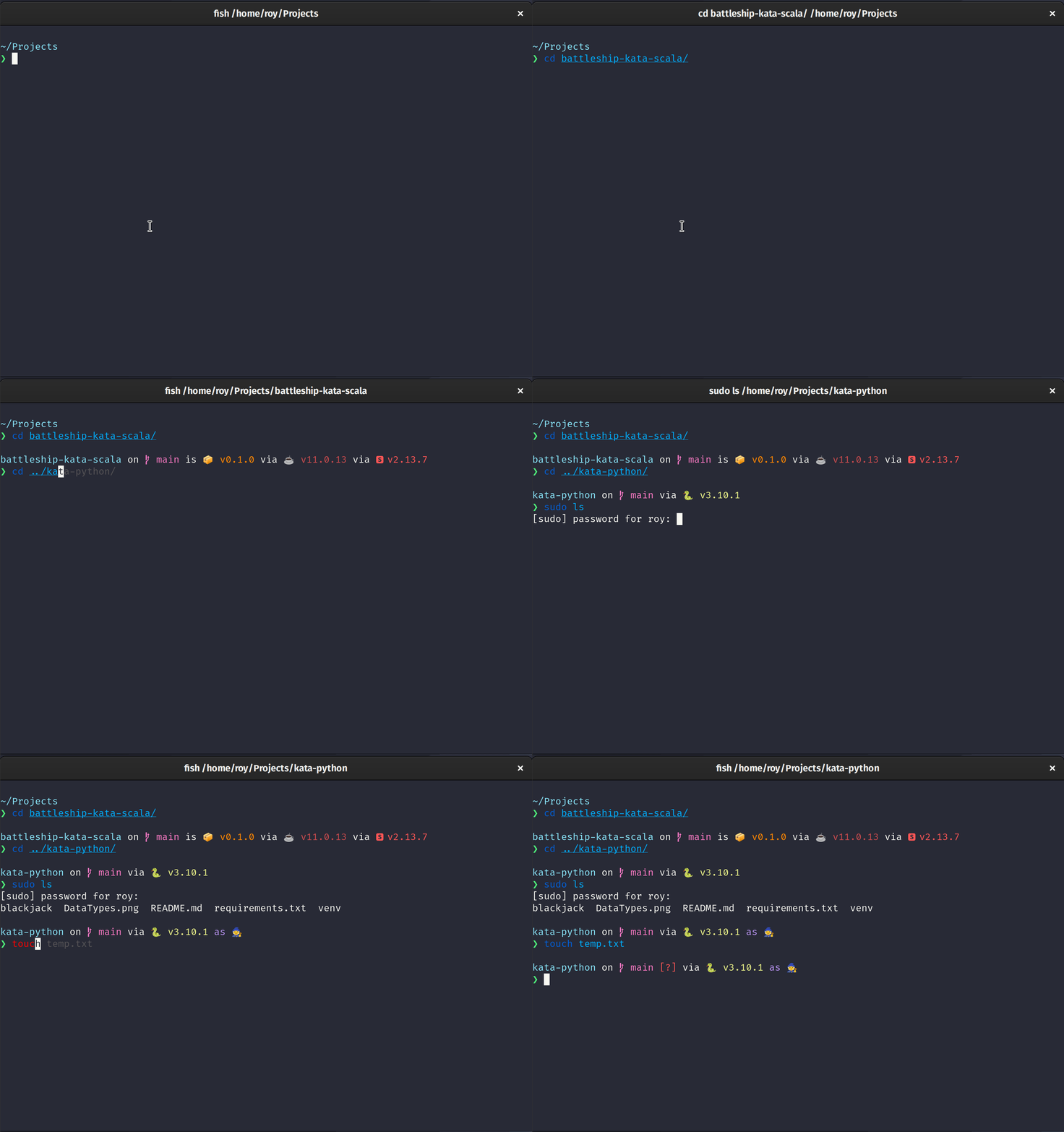
Relevant information at a glance with Starship prompt
I have come to rely on Starship quite a bit. It's very neat to have so much information at your disposal in the terminal. Saves me from typing a ton of commands!
Great, we've got a very potent terminal stack already, what else can we improve? Next up, the multitasking experience.
Multitask with Multiplexers
How often do you run multiple, or long-running commands in the terminal? I often run development servers, test tasks, and software installations a lot. Wouldn't it be great if you could do all those things effectively?
Multiplexers are amazing for these use cases. Terminal Multiplexing is rendering multiple terminal sessions in a single window. Kitty offers this out of the box, but there are standalone options like tmux dedicated to this task.
They generally offer support for rendering multiple tabs and windows within tabs. On top of this, they also allow you to personalize your layouts to just the way you like them.
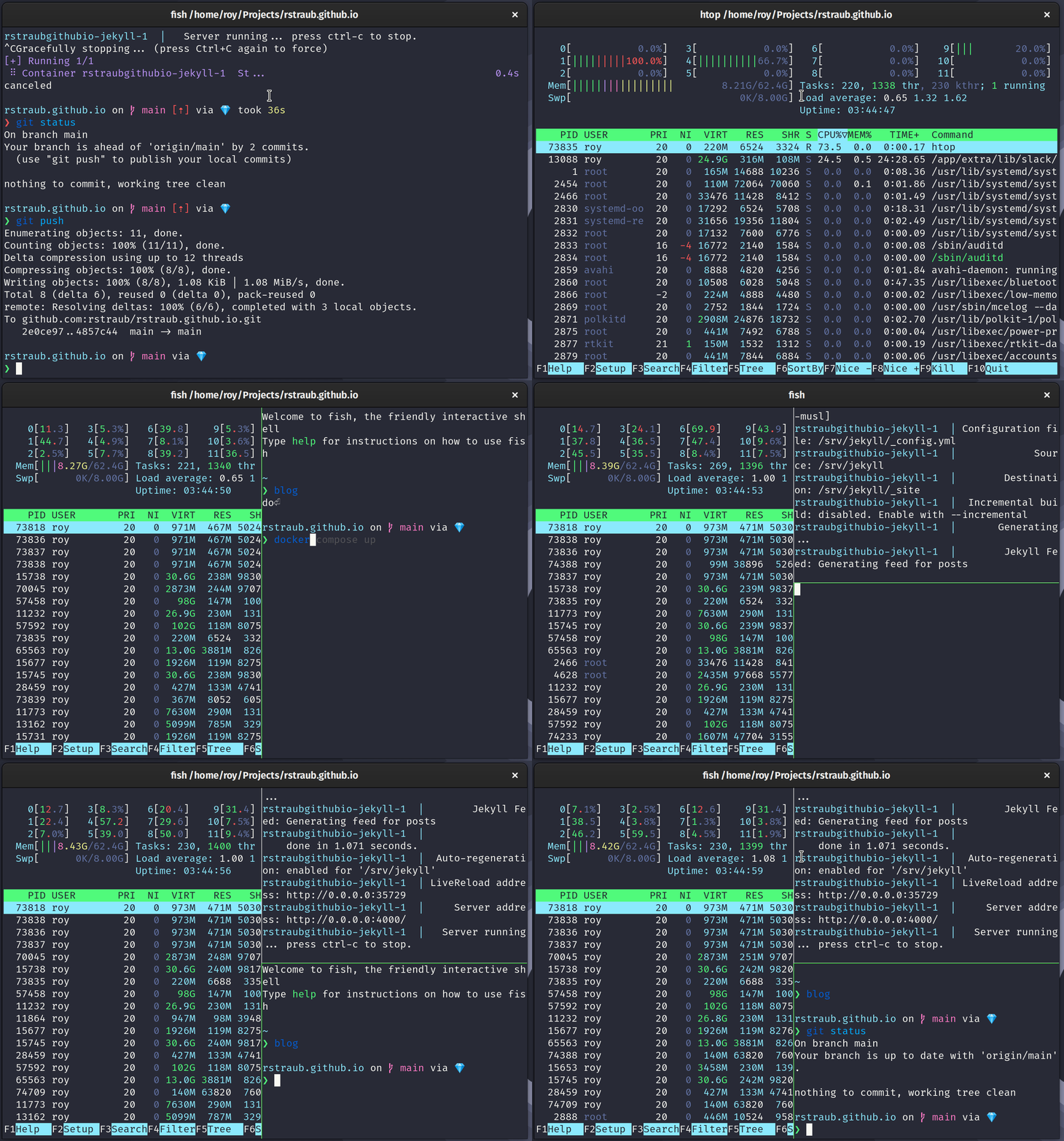
Multitasking is easy with multiplexing
I use multiplexing to run commands that take a long time simultaneously without losing focus. Gone are the days where I had to open six terminal instances or tabs. Multiplexing allows me to group relevant processes in one view.
Lastly, let's have a look at optimizing one of the most common tasks in the terminal: issuing commands.
Keyboard Wizardry with Vim Keybindings
Don't you hate it when you have a command in your terminal, but you need to change just a few parts of it. This tedious work usually involves pressing the arrow keys until you reach the part of a command you wish to change. Not necessary!
If you are familiar with the keybindings of Vim this might be interesting for you. With a little tweaking, you can set up Vim keybindings for your shell. In Fish, all that's required is to add fish_vi_key_bindings to your config file (usually in ~/.config/fish/config.fish).
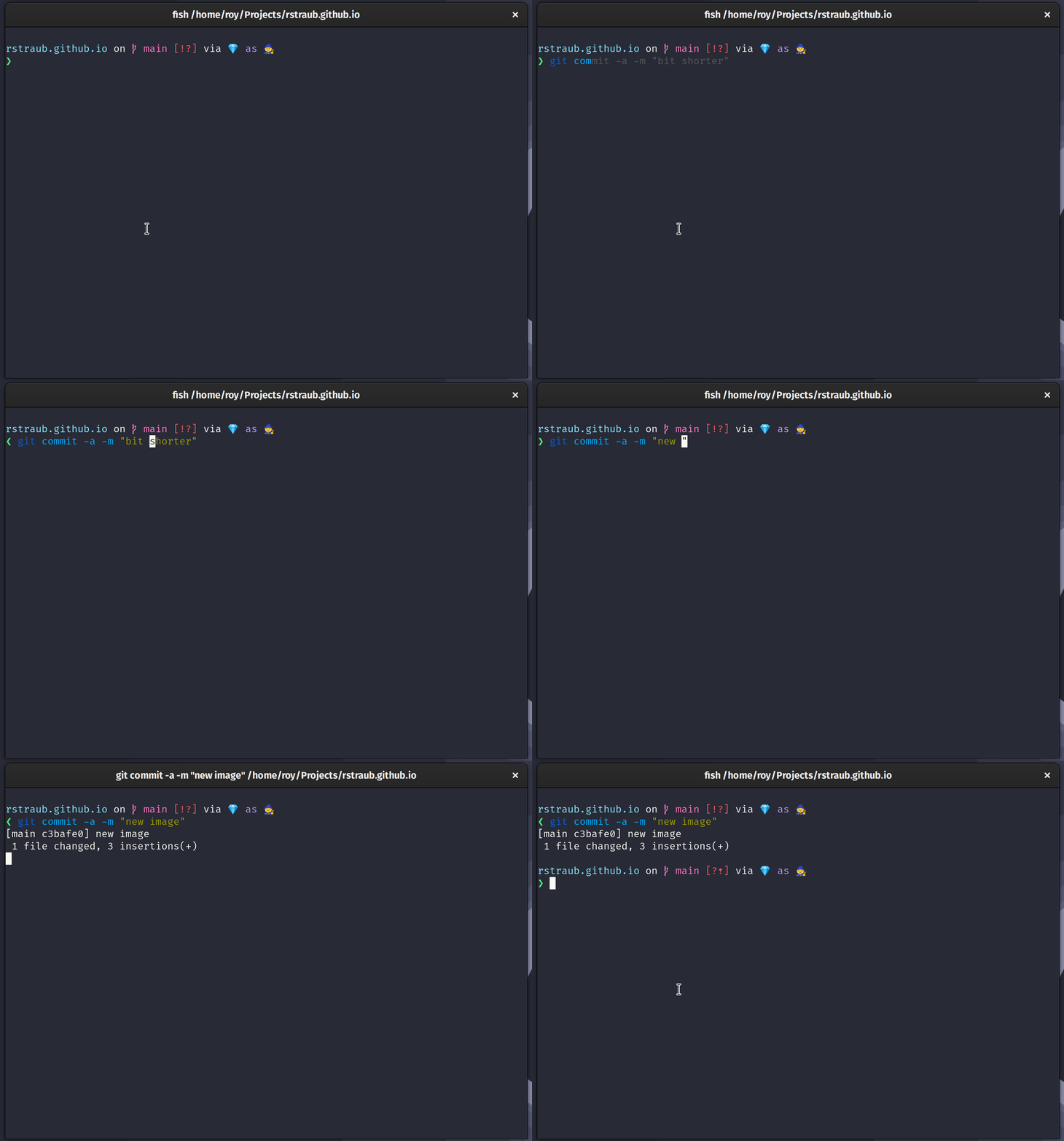
Vim keybindings make editing commands easy
What this allows you to do is to enter Normal mode to edit the text in commands just like you're used to in regular Vim.
This is especially powerful for editing parts of a previously executed command.
It also makes navigating command history more ergonomic, as you can use the j and k keys in normal mode to select previous or next commands. Never leave the home row on your keyboard again!
Putting It All Together
Any of these tweaks can improve your terminal workflow, but they work even better in tandem.
Starship's prompt is beautifully rendered, with colorful emoji in Kitty. Fish is blazing fast, as is Kitty. Multiplexing requires zero setup in Kitty and is extremely smooth. Lastly, both Vim and Kitty's keybindings are ergonomic and effective.
Conclusion
The terminal is one of the most commonly used tools for a developer. In this post I showed you how to make it more productive with a few minor tweaks.
By installing a better emulator you can elevate your terminal experience, and a better shell allows you to run commands more effectively. An upgraded prompt shows you useful information at a glance, whilst multiplexing can make your multitasking workflow smoother. Lastly, setting up Vim keybindings helps with the manipulation of commands.
Invest a little time into your terminal setup, it will be worth it in the long run!